Nubbo connects to Amazon S3 with an IAM access key. In a few minutes your bucket is in a file explorer with direct uploads, share links and galleries, without making anything public. This guide follows the Nubbo wizard step by step, with both paths: automatic or with a key limited to one bucket.
What you get
- Browse the bucket like a drive: folders, views, search, trash, labels and favorites.
- Upload and download files directly between your browser and Amazon S3. Files never pass through Nubbo servers.
- Share files and folders with a password, expiry and download limit, receive files into your bucket and create galleries.
- Your keys are stored encrypted with AES-256-GCM and you can disconnect the bucket at any time.
Before you start
You need an account with Amazon S3 and a Nubbo account. Every bucket you connect counts toward your plan limit: Free allows 2, Personal 5 and Pro has no limit. Some AWS Regions are disabled by default and must be enabled in the account before you use them (Milan, Zurich or Cape Town, for example). If you will create the bucket in one of them, enable it first. There is no need to turn off Block Public Access: Nubbo keeps the bucket private.
Choose how to connect
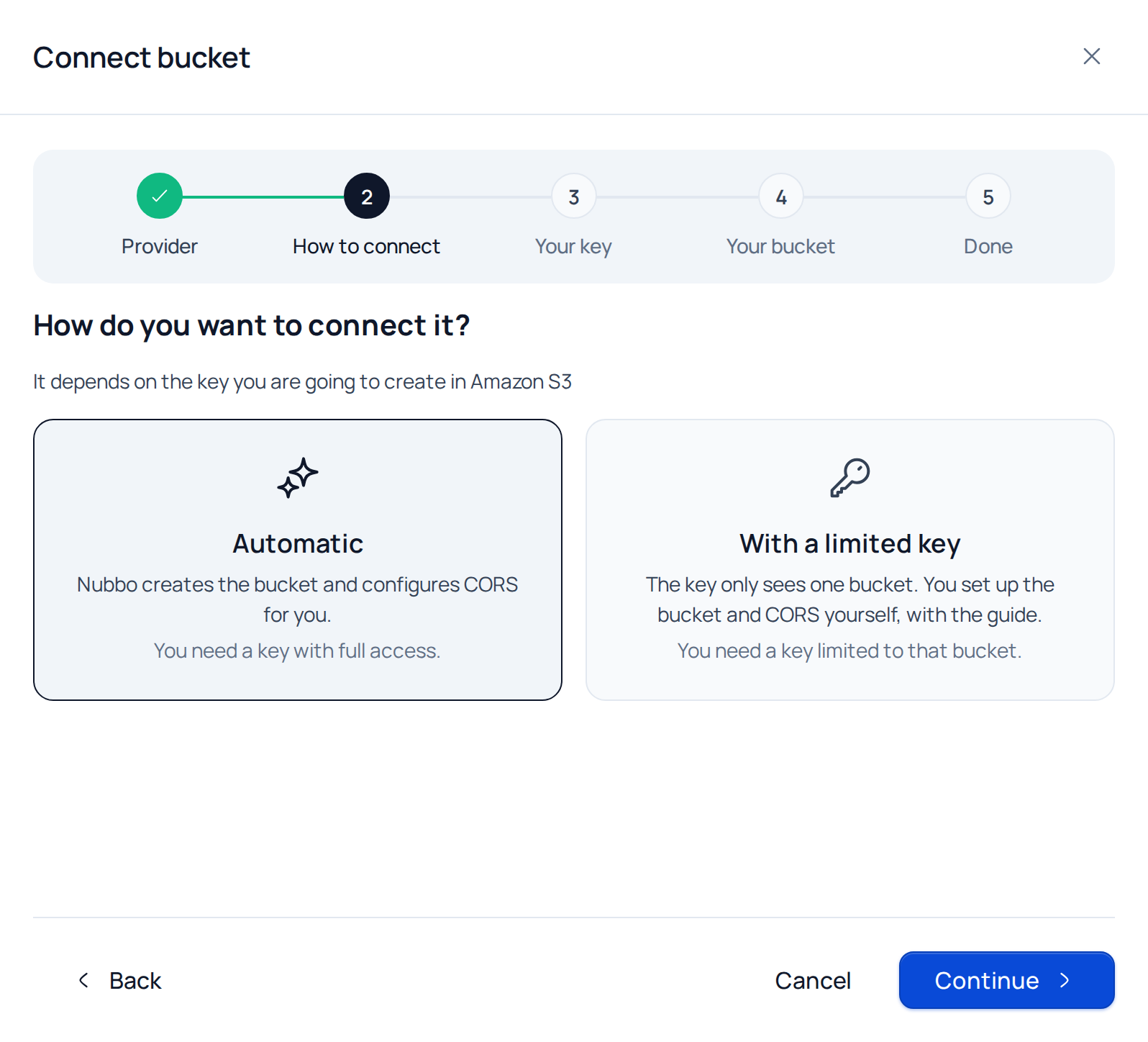
The Nubbo wizard offers two paths. Both end the same way: the bucket connected and ready for uploads from the browser.
| Automatic | With a limited key | |
|---|---|---|
| Key | Access to the whole account | Limited to one bucket |
| Bucket | Nubbo uses one of yours or creates a new one | You create it first |
| CORS | Nubbo adds the rule for you | You add the rule |
| When to choose it | The fastest way | When you do not want to give access to the whole account |
Automatic connection
Step 1: create the key in Amazon S3
- Sign in to the AWS console and open IAM. Use an IAM user, never the account root user.
- Go to Users and press Create user. Give it a name, for example
nubbo, and press Next. - In Set permissions, choose Attach policies directly, search for and tick AmazonS3FullAccess and create the user.
- Open the user, go to the Security credentials tab and, under Access keys, press Create access key.
- As the use case choose Application running outside AWS (or Other if it is not listed) and press Next and Create access key.
- Press Download .csv file. It is the only time AWS lets you see the secret access key.
Step 2: connect the bucket in Nubbo
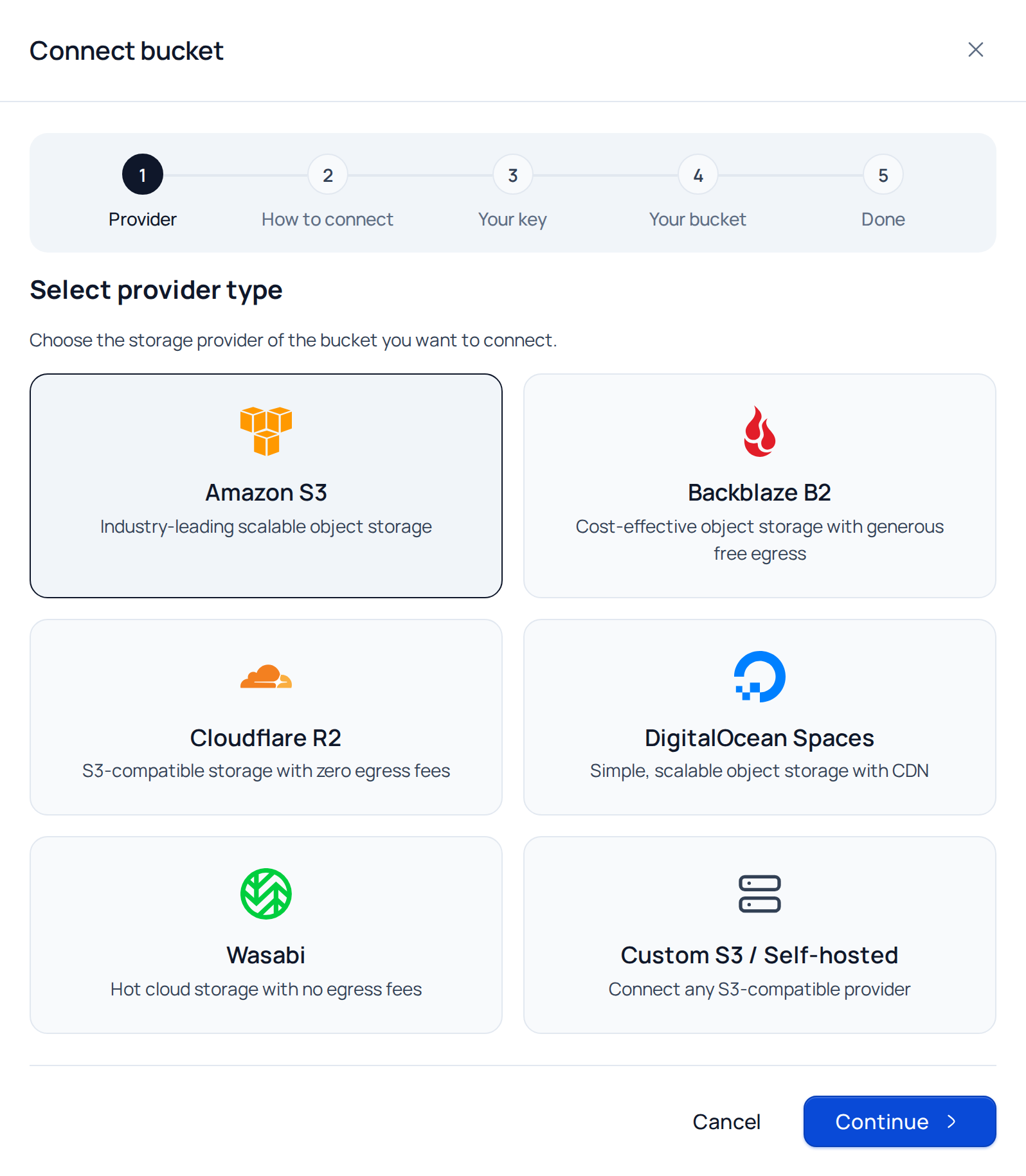
In Nubbo, open Buckets and press Connect bucket. Choose Amazon S3 and press Continue.
Choose Automatic and press Continue.
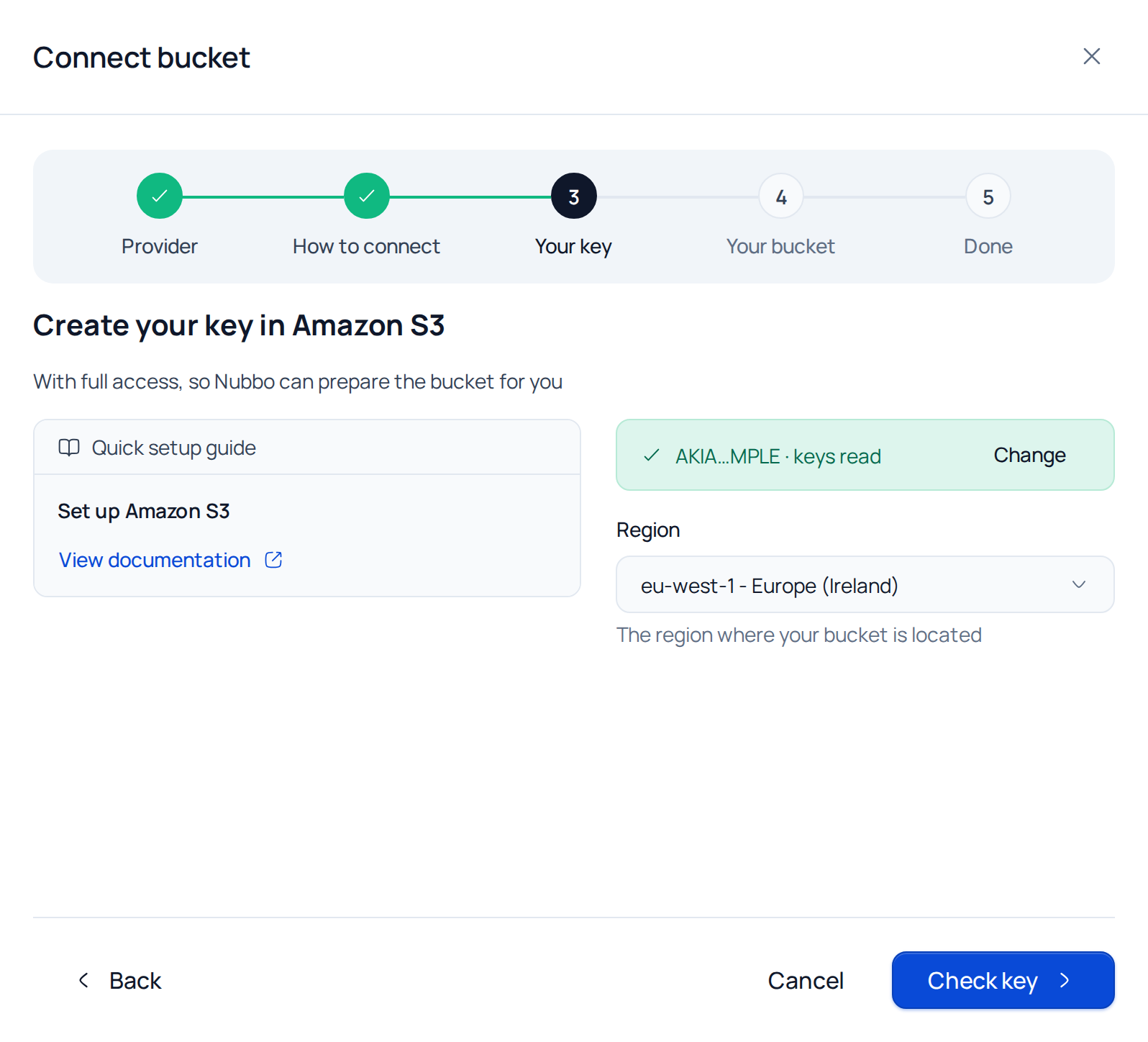
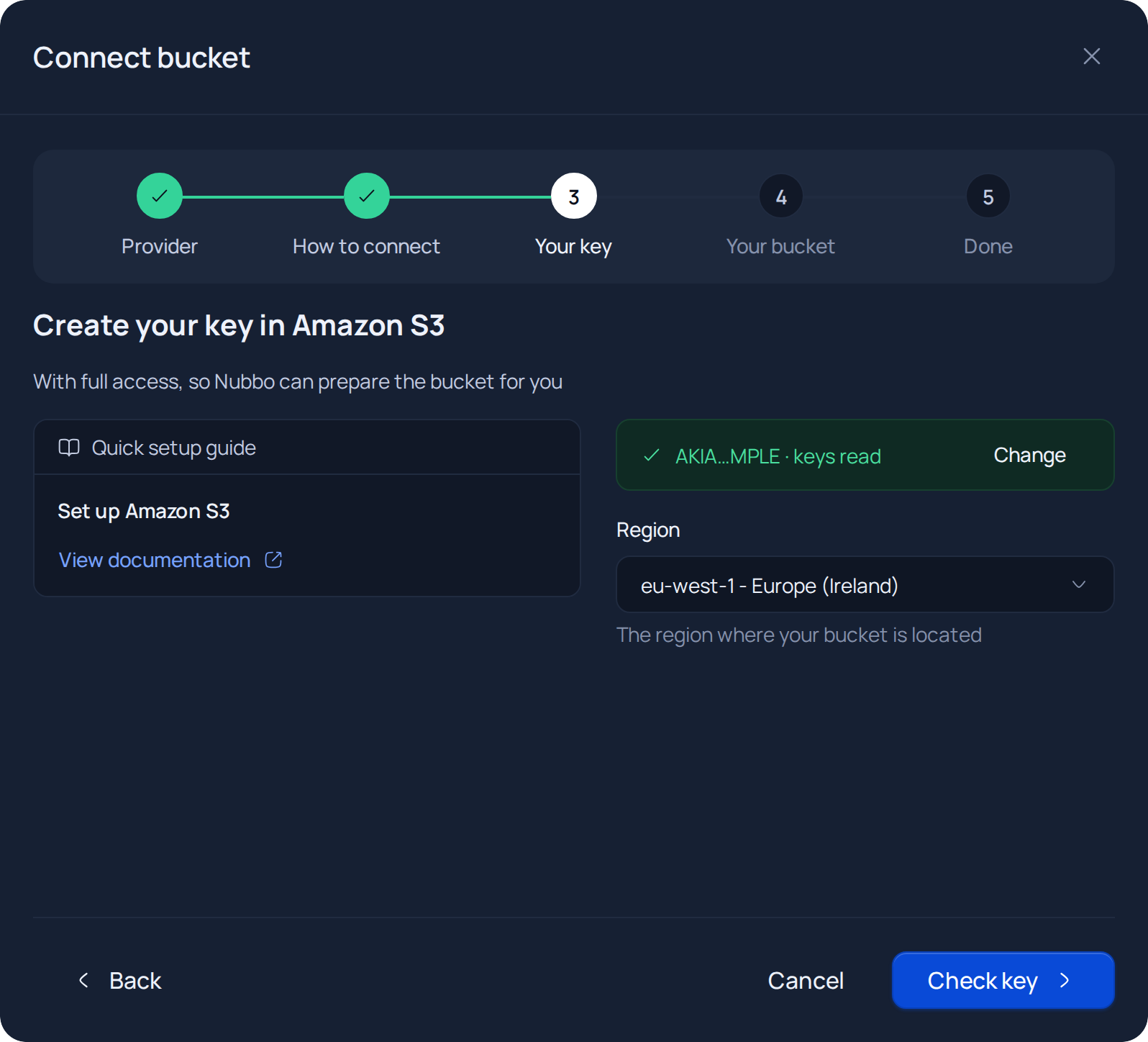
In the Your key step, press Upload file and pick the CSV you downloaded, or paste its contents into the text box. Nubbo reads the access key and the secret so you do not have to copy them by hand. Check that the Region is your buckets’ region. Press Check key. Nubbo checks that the key works and that it has access to the whole account.
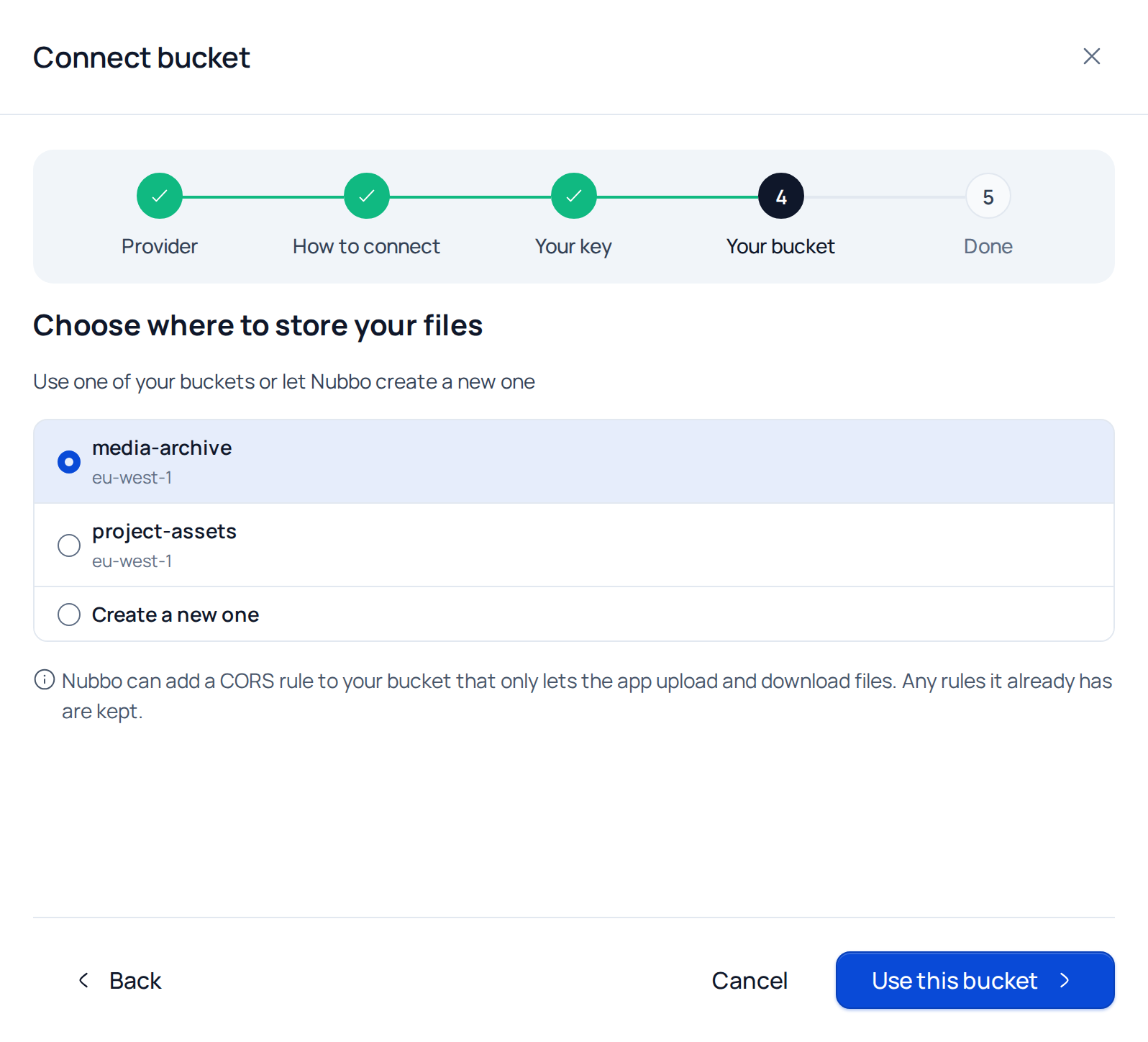
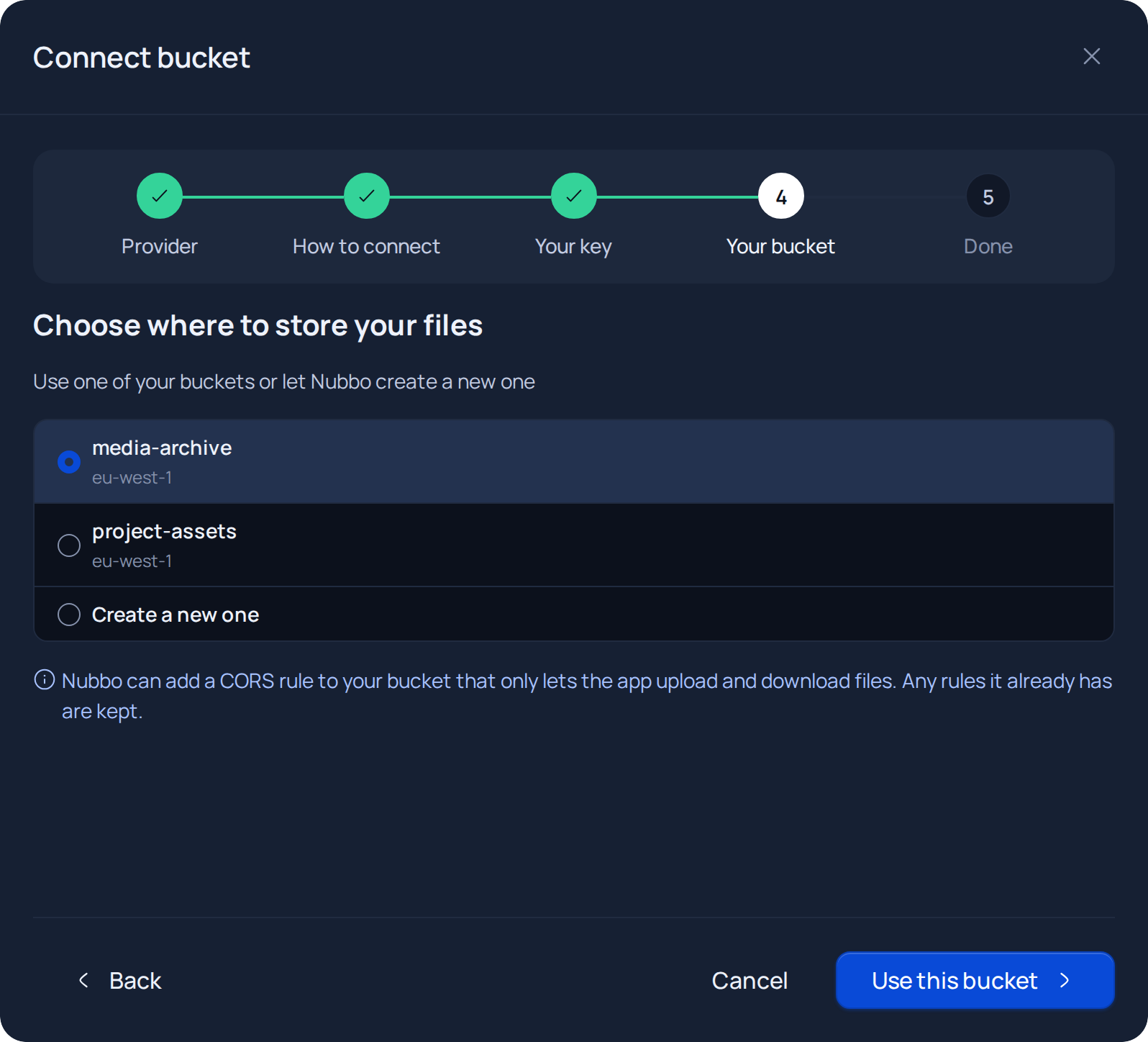
Pick one of your buckets and press Use this bucket, or select Create a new one, type a name (and pick the region, if it asks) and press Create and prepare. Nubbo adds a CORS rule to the bucket that only allows uploads and downloads from the app, and keeps the rules it already has.
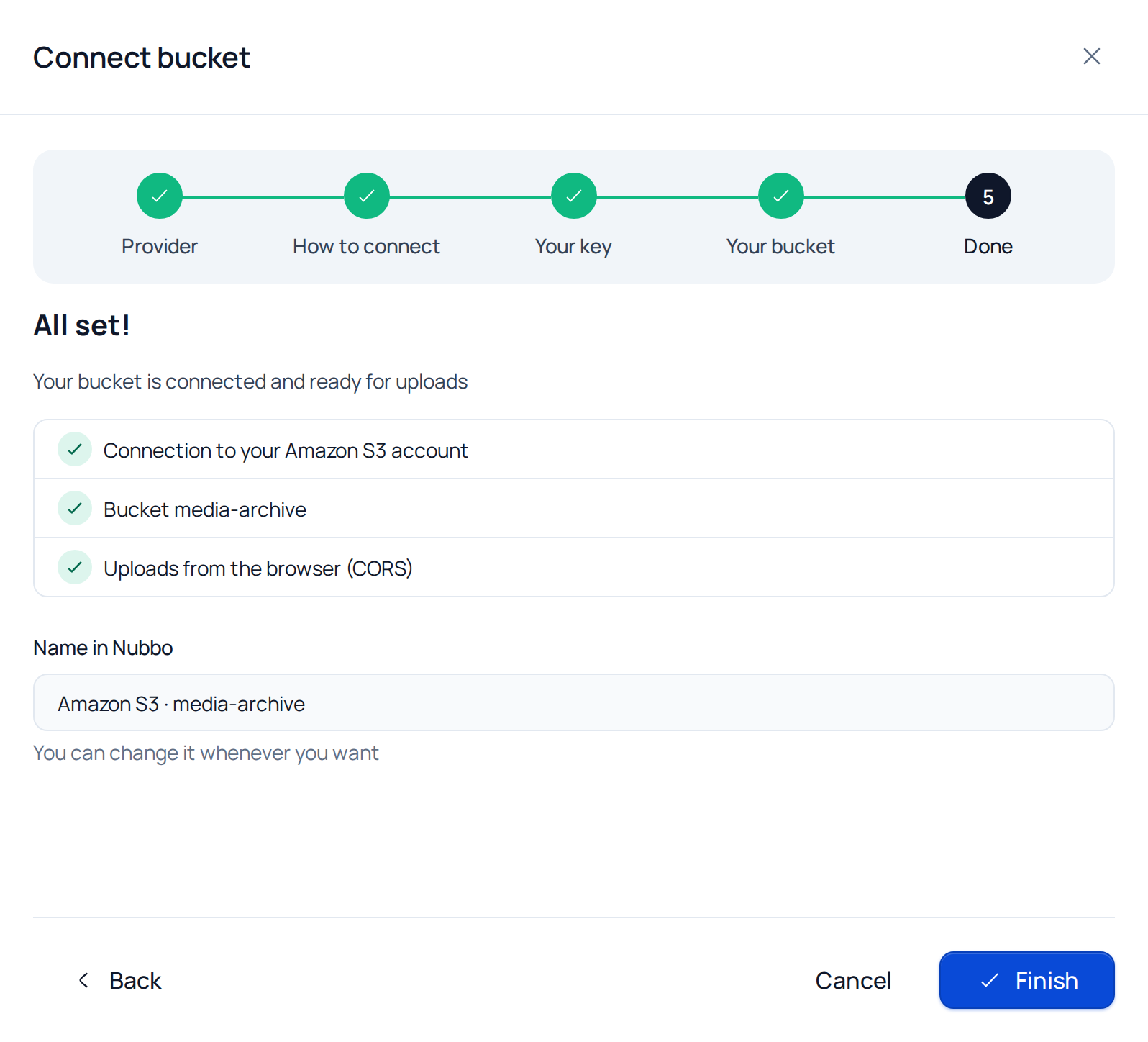
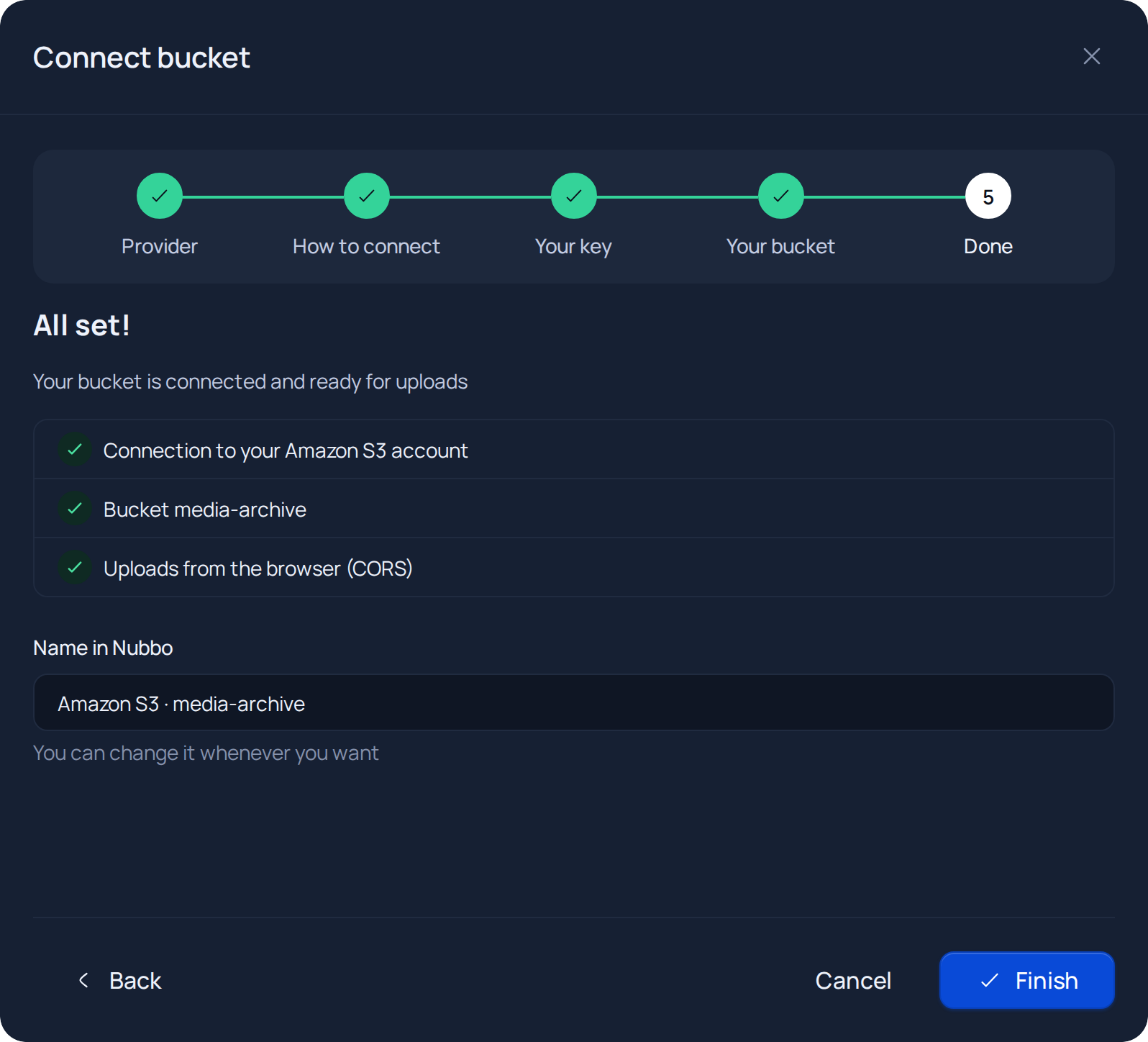
Review the three checks, change the Name in Nubbo if you like and press Finish. The bucket shows up in Buckets and you can open it in the explorer.
If Nubbo cannot add the CORS rule with your key, the wizard takes you to the CORS step. Then follow Add the CORS rule.
Connection with a limited key
Step 1: prepare the bucket and the key in Amazon S3
- In the console, pick the Region in the top bar, open S3 and, under General purpose buckets, press Create bucket. Give it a name (3 to 63 characters: lowercase letters, numbers, dots and hyphens) and create it with Block Public Access on.
- In IAM, create a user with no permissions (Users, Create user).
- Open the user, Permissions tab, Add permissions, Create inline policy. Switch to the JSON editor, paste this policy replacing
YOUR-BUCKETwith your bucket name and save it with a name. - Create the key under Security credentials, Create access key, as in the automatic connection, and download the CSV.
{
  "Version": "2012-10-17",
  "Statement": [
    {
      "Effect": "Allow",
      "Action": ["s3:ListBucket", "s3:GetBucketLocation"],
      "Resource": "arn:aws:s3:::YOUR-BUCKET"
    },
    {
      "Effect": "Allow",
      "Action": [
        "s3:GetObject",
        "s3:PutObject",
        "s3:DeleteObject",
        "s3:AbortMultipartUpload",
        "s3:ListMultipartUploadParts"
      ],
      "Resource": "arn:aws:s3:::YOUR-BUCKET/*"
    }
  ]
}
Step 2: connect the bucket in Nubbo
- In Buckets, press Connect bucket, choose Amazon S3 and then With a limited key.
- Upload the key CSV or paste its contents and choose the bucket region. Press Check key.
- Type the exact bucket name and press Check access.
- The wizard moves to the CORS step with the rule you need to add.
Add the CORS rule
The CORS rule lets the browser upload and download files from your bucket on https://nubbo.app. It is the same rule the wizard shows in the CORS step.
- In the S3 console, open the bucket and go to the Permissions tab.
- Scroll down to Cross-origin resource sharing (CORS) and press Edit.
- Paste the rule and press Save changes.
[
  {
    "AllowedHeaders": ["*"],
    "AllowedMethods": ["GET", "PUT", "POST", "DELETE", "HEAD"],
    "AllowedOrigins": ["https://nubbo.app"],
    "ExposeHeaders": ["ETag"],
    "MaxAgeSeconds": 3600
  }
]
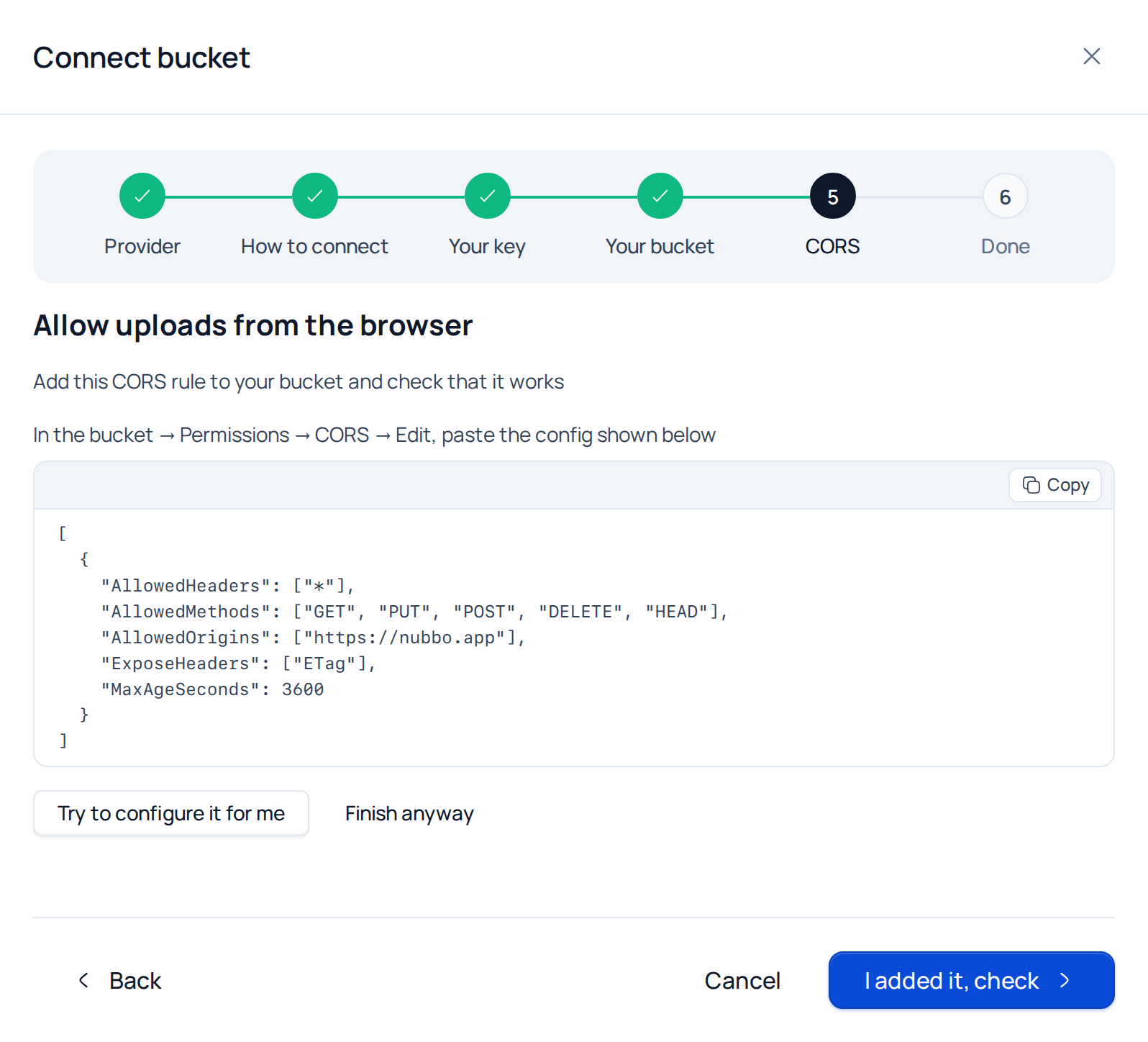
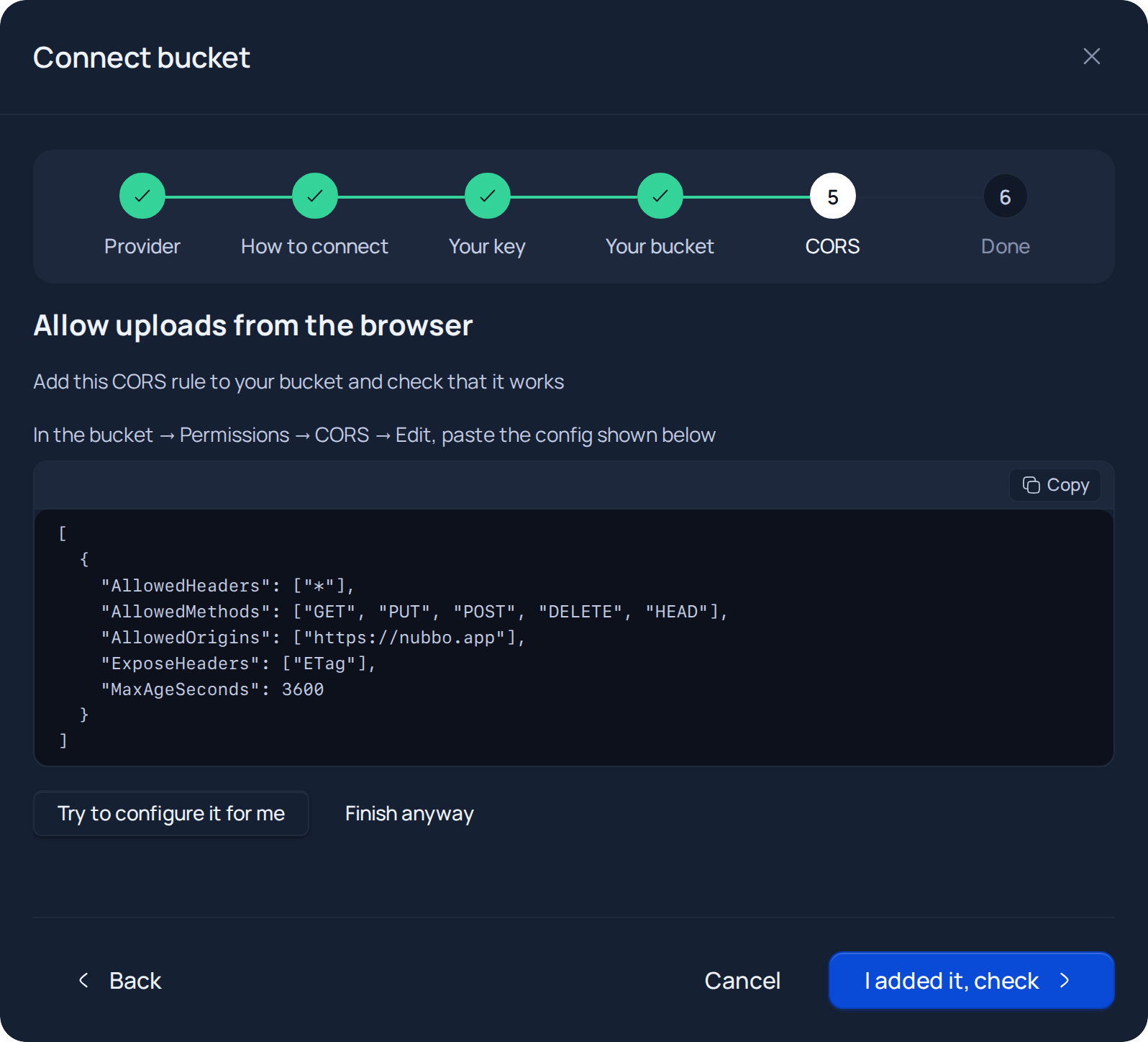
Once it is saved, go back to Nubbo and press I added it, check. Some providers take a minute to apply it. If your key is allowed to change CORS, Try to configure it for me does it for you.
If something goes wrong
| Message in Nubbo | What to do |
|---|---|
| “Invalid credentials. Check the access key and secret access key.” | Copy both keys again, with no spaces at the start or the end. |
| “This key seems limited to one bucket. You can continue with the limited path or create a key with full access.” | Press Continue with a limited key, or create a key with access to the whole account and press Try another key. |
| “Bucket not found. Verify the name and region.” | Check the exact bucket name and that the chosen region is the bucket’s. |
| “Your key is not allowed to create buckets.” | Use a key with full access, or create the bucket in your panel and press I created it in my panel. |
| “That name is already in use on this provider; try another one.” | Bucket names are unique across the provider: pick another one. |
| “Your key is not allowed to set it up.” | Add the CORS rule by hand, as explained above. |
| “It does not work yet. Review the rule and check again; some providers take a minute to apply it.” | Check that the origin is exactly https://nubbo.app with no trailing slash, wait a minute and check again. |
| “This bucket is already in use.” | That bucket is already connected in Nubbo, in your account or in another one. |
| “The bucket is in a different region. Verify the configured region.” | In the Your key step, choose the region the bucket is in. |
| “We could not find the keys in that file; paste them by hand.” | Upload the CSV you downloaded when you created the key, or paste its contents as they are. |
What it costs
Amazon S3 charges for storage, requests and data transfer out. We explain it with examples in Amazon S3 pricing.
Frequently asked questions
Do I need to make my S3 bucket public to use Nubbo?
No. Nubbo keeps the bucket private and Block Public Access can stay on. Uploads and downloads use presigned URLs that expire.
What permissions does the AWS key need?
For the automatic path, the AmazonS3FullAccess policy. With a limited key, an inline policy that only gives access to your bucket is enough: list, read, write and delete objects.
Can I use the AWS root user keys?
It is not a good idea and AWS advises against it. Create an IAM user just for Nubbo; you can then deactivate its key without touching anything else.
Why does Nubbo have no fields for the AWS key?
Because AWS gives you the key in a CSV. Nubbo reads it directly: you upload it or paste its contents and never copy the secret by hand.
Can I connect several S3 buckets?
Yes. Each bucket counts toward your plan limit: Free allows 2, Personal 5 and Pro has no limit, and they can come from different AWS accounts.
Sources
Prices and limits come from the official pages below. Providers change them, so check before you commit.