How to organize photos in cloud storage without losing control
Photos accumulate faster than almost any other type of file. A single wedding shoot produces thousands of RAW files. A product photography session fills dozens of gigabytes in an afternoon. A design studio’s asset library grows every week with no end in sight. And yet, most photographers and creative professionals still rely on local drives, external hard drives or consumer cloud services that were never built for this kind of volume.
The result is predictable: disorganized folders, duplicated files across devices, rising storage costs and the constant fear that a hardware failure will wipe out months of work. There is a better approach, and it starts with understanding how object storage works.
Why consumer cloud storage falls short for photos
Google Photos is the default for many people, and it is fine for personal snapshots. But for professional work, the limitations are real. Google compresses images unless you pay for original-quality storage, and even then, your files sit on Google’s infrastructure where automated systems scan them. You do not control where your data lives, and storage pricing climbs steeply as your library grows.
Dropbox and iCloud have similar constraints. They work well for syncing a few folders between devices, but they were not designed for managing tens of thousands of high-resolution images with professional sharing workflows. External hard drives solve the cost problem temporarily, but they fail, they get lost and they cannot be accessed remotely.
Professionals need storage that scales without compression, does not scan their files and lets them share work with clients in a controlled way.
Why object storage works for photos
Object storage — the technology behind services like Amazon S3, Cloudflare R2, DigitalOcean Spaces, Wasabi and Backblaze B2, plus any S3-compatible or self-hosted server — is what most of the internet uses to store files behind the scenes. It offers several properties that make it ideal for photo libraries.
Unlimited scale. There is no cap on how much you can store. Whether you have 500 GB or 50 TB of photos, the system handles it without performance degradation.
Extreme durability. Major providers offer 11 nines of durability (99.999999999%). Your files are replicated across multiple data centers. A hard drive failure somewhere in the infrastructure does not touch your data.
Pay-per-GB pricing. You pay for exactly what you use. No fixed tiers, no wasted capacity. A terabyte of storage costs between $2.30 and $6.99 per month depending on the provider — a fraction of what consumer cloud services charge.
No compression, no scanning. Your originals stay untouched. No one downsizes your 60-megapixel RAW files or runs automated content analysis on your client photos.
You own the data. The storage account belongs to you. You can switch providers, download everything or connect multiple tools to the same bucket. There is no vendor lock-in because all major providers use the S3-compatible API.
Choosing a provider for your photo library
The right provider depends on how you use your photos. Here is a brief overview.
Cloudflare R2 is the best choice if you share frequently. R2 charges zero egress fees, meaning you pay nothing when clients download files or view galleries. For photographers who deliver work through shared links and galleries, this eliminates a significant variable cost.
Wasabi is ideal for large archives. At $6.99 per terabyte per month with no egress fees, it is the most affordable option for storing large libraries of RAW files and project archives that are accessed occasionally.
Amazon S3 offers maximum flexibility. It has the most storage classes, the most granular access controls and the widest geographic availability. It is also the most complex to optimize, with egress fees that can add up if you are not careful.
DigitalOcean Spaces provides a straightforward middle ground with predictable pricing and a simple setup. Good for teams already using DigitalOcean infrastructure.
For a detailed comparison of pricing, features and trade-offs, see our S3 vs R2 vs Spaces vs Wasabi vs Backblaze B2 breakdown.
Folder structure best practices
Object storage does not have a true folder hierarchy — it uses key prefixes that look like folders. But the principle is the same: a consistent naming convention keeps things manageable as your library grows. The worst thing you can do is dump everything into one flat bucket with no structure.
Pick one organizational approach and commit to it.
By date (year/month)
photos/
  2025/
    01/
    02/
    ...
    12/
  2026/
    01/
    02/
This works well for personal archives and editorial photographers who shoot chronologically. It is simple, unambiguous and every photo has exactly one place to go.
By client or project
photos/
  clients/
    acme-corp/
      product-launch-2026/
      brand-refresh/
    smith-wedding/
    jones-family-portraits/
  personal/
    travel/
    street/
This is the best structure for freelancers and studios that organize work by engagement. Each project is self-contained, making it easy to find deliverables and archive completed work.
By event or category
photos/
  weddings/
    2025-09-smith/
    2026-03-jones/
  portraits/
    corporate/
    family/
  product/
    electronics/
    fashion/
This approach suits photographers who specialize in multiple categories and want to browse by type rather than by client.
Whichever structure you choose, the key is consistency. Do not mix approaches within the same bucket. Decide once, document it and follow it for every upload.
Browsing photos visually in your bucket
Here is the catch with object storage: it has no native user interface. The default way to interact with S3 or R2 is through the AWS Console, a CLI tool or an API. None of these show you image thumbnails. You are staring at a list of filenames like IMG_4392.CR3 with no visual context.
This is where Nubbo’s file browser changes the experience. When you connect your bucket to Nubbo, you get a web-based file manager with a grid view that generates thumbnails for your images. Browsing a folder of photos feels like using a local photo library — you can see what is in each folder at a glance without downloading anything.
Beyond thumbnails, Nubbo lets you tag files with color-coded labels. You might use labels to mark files as “selected,” “needs editing,” “delivered” or any custom category that fits your workflow. This adds an organizational layer on top of your folder structure without moving any files.
You can also star specific files or folders as favorites — sessions you are editing this week, assets you reuse constantly, albums pending review — and find them all together in a dedicated view. It is the fastest way back to what you are working on right now without having to remember the exact path inside the bucket.
The list view is there when you need it, showing file sizes, dates and metadata in a traditional table layout. Drag and drop uploads let you add new photos directly from your desktop. It is the visual layer that object storage lacks out of the box.
Sharing photos with clients
Once your photos are organized in cloud storage, you need a way to deliver them. Emailing large files does not work. WeTransfer adds an unnecessary middleman. And giving clients direct access to your storage account is out of the question.
Nubbo offers two approaches depending on your workflow.
Photo galleries
Photo galleries let you create a shareable gallery from any folder in your bucket. Select a folder, generate a gallery link and send it to your client. They see a clean, visual grid of images — no account required on their end.
Galleries support features designed specifically for professional delivery:
- Watermarks. Protect your images with watermarks so clients can review without downloading unwatermarked originals.
- Like system. Clients can “like” individual photos to indicate their selections. This replaces the back-and-forth of “I want photo 47, 89 and 123” with a visual feedback system.
- Password protection. Restrict access so only people with the password can view the gallery.
- Expiration dates. Set the gallery to expire automatically after a deadline passes.
This is ideal for photographers delivering proofs, designers sharing visual concepts and anyone who needs structured client feedback on a set of images.
Folder and file sharing
If you need to let clients download actual files — edited photos, final deliverables, project assets — you can share individual files or entire folders with granular controls:
- Password protection to restrict access.
- Expiration dates so links stop working automatically.
- Download limits to control how many times a file can be downloaded.
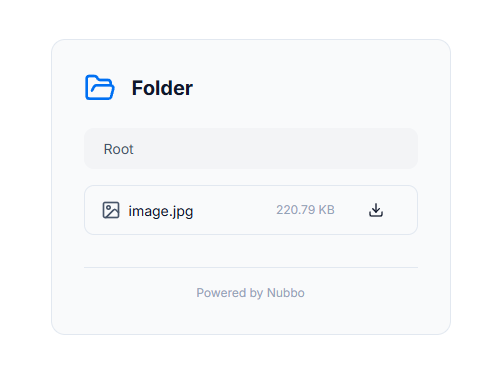
Files never pass through Nubbo during sharing. Every download uses presigned URLs, meaning your client’s browser fetches the file directly from your storage provider. This keeps transfers fast and your data private.
Receiving photos from clients
The sharing problem works in both directions. Sometimes clients need to send you files — raw assets, reference images, documents for a project. Email attachments max out at 25 MB. Cloud drive shared folders require the client to have an account and navigate your folder structure.
Nubbo’s File Requests solve this by letting you create a dedicated upload link. You choose a destination folder in your bucket, configure optional restrictions (password, file type limits, expiration) and send the link to your client. They open it in their browser, drag and drop their files and the uploads go directly to your bucket. No account needed, no intermediate storage, no re-uploading on your end.
This is particularly useful for wedding and event photographers collecting guest photos, agencies receiving brand assets from clients and studios gathering reference material at the start of a project.
Putting it all together
The workflow looks like this: store your photos in object storage for durable, affordable and private archiving. Organize them with a consistent folder structure. Use Nubbo to browse visually, tag with labels and manage files without touching the CLI. Deliver work to clients through galleries with watermarks and feedback tools. Receive files from clients through upload links that deposit directly into your bucket.
Every file stays in storage you own. Nothing is compressed, scanned or locked behind a proprietary platform. You can switch providers, connect additional tools or download your entire library at any time.
If you are ready to organize your photo library on your own terms, create a free Nubbo account and connect your first bucket today. Your photos deserve better than a folder called “Unsorted.”